Nav

Home           Earlier Posts

Sunday, September 1, 2013

Architecture - 2


Correcting Perspective Distortion

Objects that are farther away will appear smaller – to your eye as well as to your camera. When you look up at a building the top part is bound to look smaller. Our brain intercedes and makes the needed interpretations so we are not bothered by the optical effect that we call “perspective distortion” in real life. However, when we see the same thing in a flat photograph it looks like the buildings are falling in on each other.

Here is an example of such a situation:

Atlanta Skyline

This is how the camera say it, and this is how the photographer saw it, but it just didn’t appear that way. What I thought I saw when I took the picture was more like this:

Atlanta Skyline

Quite a bit different, and much more realistic. If the camera is tilted upward when a photo is taken, the top of buildings will be imaged smaller because those parts are farther away from the camera than the bottom parts of the building. This photo also shows a gate structure, one end is closer to the camera and the other farther away. We see the same effect, but this seems much more natural because we are used to seeing the world this way all the time. It is mostly the vertical perspective distortion in photos that bothers us.

In this article I will show you how you can easily make corrections to your photos so they look real and impressive, maybe even really impressive!

Most of my readers know that my “go-to” application for managing and improving photos is Windows Photo Gallery. I am biased, I admit, I wrote a couple of books about this tool. Photo Gallery is aimed at the casual photographer and not intended as a full-fledged photo editor. It does not provide a tool for perspective correction. There is a Microsoft tool, another favorite of mine, Image Composite Editor, I like to call it ICE, that can do a very nice job of making such corrections. It is a “photo stitcher” by design and normally is used to combine a number of photos into a composite such as a panorama. It does not work with just one photo.

For just making perspective distortion correction we need to trick ICE into thinking that it is working with two photos.

Here is the procedure, the video here shows the steps but without sound or explanation.

Since ICE can be called directly from Photo Gallery, that is the way to get started. Make a copy of the photo. In Photo Gallery there are tools for that, but I like to just right-click a photo, select Copy, then right-click an empty space and select Paste.

Next select both photos: Click on the first one, then hold down Ctrl and click the copy.

Demo of ICE for making perspective distortion correction

Click the Create tab, click More tools and under Microsoft Image Compose Editor click Create image composite.

(If you do not have ICE installed on your computer you need to do that first, ICE is free and still available from Microsoft: Image Composite Editor Download).

ICE will load the two images, since they are identical the “composite” you see is just the photo.

imageOn the left side in the Stitch panel click the selection button and click Rotating Motion.

Next click the little box in the tool bar at the top.

image

ICE will already have selected Perspective as the projection to use, but you can make sure by clicking Projection.

Now you can drag the photo right and left for horizontal perspective adjustments and up and down for vertical perspective adjustments. Start near the center and note the custom pointer with horizontal or vertical pointing arrowheads. You can combine the vertical and horizontal corrections. Move the pointer to the bottom of the image and you will be able to rotate it as well.

This is much more easily demonstrated than explained in text. So take a look at the video. Click the ► play button, you can select a higher video quality and view it full screen so you can see the details better.

Now is that not an impressive way to make perspective corrections?

I like to leave just a little bit of “lean” to the buildings, that seems more natural in the final image than perfect correction.

When you have made the correction as you like it, click the Apply button. ICE will now show the corrected image with a cropping frame around it. You can do the cropping right in ICE. You can select the final JPG image quality or select another file format. To save the image to your computer click the Export to disk button. (Yes, there are other options but not for today.)

After you have used ICE to make perspective distortion corrections you will come to prefer this method to the tools that the full-fledged photo editors provide.

If you have trouble with the video above, use this link: http://www.youtube.com/watch?v=_pACWT24ztc

.:.

Friday, August 23, 2013

Architecture - 1

Architecture – When you have to get close

The city of Norcross has a handsome city hall. It is rather difficult to get a good photo of it. Rather than explaining let me show you the problem.

Norcross City Hall LJK_9347-P-1024

You can see a bunch of power lines, the power pole and light posts. Even then my 18mm wise angle lens (24mm 35equiv) couldn’t see it all. Backing up more is not an option on this narrow street. My solution may not be the best and a bit humorous but here is what I did. This work-around may work for you in some situations.

I crossed the street, you can see that little path there. From that vantage point the power lines and poles were not in the field of view. Close-ups were all that was possible even with the wide angle lens. Here is my set of photos:

CityHall-set-1024

I took a group of pictures, generously overlapping views. First looking straight at the building, then another rom looking up a bit, and finally another row so I could get the top of the rotunda cleanly. Well, none of these are very impressive by themselves. You can see the perspective distortion problems caused by looking upward.

Next I selected this set in Photo Gallery and clicked on Create > Panorama. Photo Gallery does a fairly nice job; it finds how the photos match – their order does not matter – and even makes exposure corrections while assembling the panorama. I matches the photos, stretching and distorting them so they fit together. Here is what Photo Gallery came up with:

Norcross City Hall LJK_9348-63-P-PGstitch-1024

I did not crop the resulting composite so you can see how Photo Gallery distorted each image and put them together. The power lines and poles are gone, but building now looks a bit “bulgie”.

Can that be corrected? For that a full-fledged photo editing program is needed and even then it is a rather large chore because the stretching and distorting that Photo Gallery has done varied across the image. There is a utility that provides a large range of options for stitching photos together that I really like: Microsoft Image Composite Editor. I call it “ICE”. It is a free download and once installed shows up in Photo Gallery (Create > More tools). So a selected set can be taken right into “ICE”.

One option in ICE is “Perspective” which helps to make sure that the vertical lines are indeed vertical. The close proximity to this building makes the corrections rather, let me just say, “impressive”. So here is my version from Image Composite Editor, cropped this time. That rotunda is a bit overly frivolous maybe, but here is my image of Norcross City Hall:

Norcross City Hall

OK, in response to many requests, here is a view of the PaintShop Pro Mesh Warp tool in action:

PSPX6-MeshWarp-02-1024

The mesh warping tool superposes a grid, each intersection is a drag handle so it can be moved horizontally and vertically to warp the image as desired. For this image the objective was to make the building as natural looking as possible. It takes a bit of playing around with this tool. If the mesh tool does not completely do the job the warping brush can be used to distort a small area at a time. That is even more delicate to apply in a situation like this.

Below is the result using the mesh warping tool.

Norcross City Hall

.:.

Saturday, July 13, 2013

Dark skies for dramatic B&W photos

Creating dramatic dark skies with simple tools

In black and white photography it is all about the light, shapes and lines. Such images offer a totally different appeal from their color photo counterparts. Dramatic dark skies are a hallmark tool for stunning images. Here are some tips for getting the most from your color originals using simple tools.

Let me start with a demonstration.

Men of Steel

This delightful sculpture showing workers taking a break on a steel beam gleams in this photo. The dark sky and deep shadows bring life to this image.

It was derived from a rather ordinary color photo. The normal process is to use a color-filter conversion when making it into a B&W image. Pretty much all the photo editors provide such tools.

In PaintShop Pro you can pick the exact filter color from a color wheel as illustrated below. Similarly, Picasa has a “Filtered B&W” effect and the filter color is picked from a palette. Windows Photo Gallery offers a selection of B&W effects with several filter colors.

PaintShop Pro - Black & White Film tool

Picasa - Filtered B&W

Windows Photo Gallery - Effects

With all of these tools the reddest filter does not provide that dramatically dark, almost black, sky for a normal blue sky in a photo. There is an added trick to achieve the deep dark sky: Adjust the color saturation to a very high level. The image below shows the results. The outside (left and right) portions show the normal photo with the normal result through a red filter.

The inside pair shows a deeply saturated sky and the the resulting dark black and white image.

Lunch break

One note of caution: The resulting black and white image will show a good deal of mottling in the formerly blue areas. A uniform sky will make this even more noticeable. So make the conversion in the largest image that you have. Make any size reductions afterwards to maintain a clean sky.

This post was also published at Café Ludwig.

.:.

Wednesday, June 12, 2013

Depth of Field

A quick review of “Depth of Field”

Since the dawn of photography “depth of field” has plagued, puzzled, and aided photographers. A simple definition of depth of field, DOF, is the range in a photo from the closest to the farthest distance that is acceptably sharp. DOF is used to include areas in a photo as well as to exclude unimportant elements. For this second use the limit is then “acceptably blurred”. Simple isn’t so simple anymore.

For a very good overview with enough math to serve as a sleep aid for an insomniac (at the bottom, don’t worry the main part is easy enough), see this listing in Wikepedia – Depth of Field.

Another great tutorial is provided by Cambridge in Colour: Depth of Field.

Great depth of fields is what we want in our epic landscape photos that show everything tack sharp from in front of our feet to the farthest mountain. Here is a great example by Stephen Blecher:

American Basin, San Juan  Mountains, Colorado

B&W version by Ludwig Keck

Decades ago, in the days before zoom lenses and instant playback of the images, lenses featured depth of field scales or indicators to aid the photographers. Nowadays with zoom lenses that is not feasible, indeed many lenses have no distance scales, but that does not make DOF any less important.image

As I said, depth of field is the range in a photo from the closest to the farthest distance that is acceptably sharp. This range is controlled by several factors. “Acceptable sharp” depends on how much the photo will be enlarged and human vision. Practically the detail in a photo depends on the pixel size of the camera sensor, the aperture of the lens, the focal length of the lens, and, yes, the “quality” of the lens.


Hyperfocal Distance

You can control the depth of field by the selection of the focal length, aperture, and focus distance. In days of yore, photographers were drilled the use of the “hyper-focal distance”. That is the focus distance, for a given aperture, that produces the maximum depth of field. For landscape photography that is the setting to use. You can bring flowers or plants close to the camera in focus and still render the distant mountains sharp.

For example for a 35mm lens on a full size sensor (24mm by 36mm) the hyper-focal distance at f/16 is about 8 feet, 2.6 meters. With the lens focused to that distance everything will be sharp from half that distance, 4 ft, 1.3 m, to infinity. At f/11 the hyper-focal distance is about 12 ft, 4m, with the DOF reaching down to 6ft or 2m.

In practical terms, if you want the distant mountains and something fairly close, don’t focus on the mountains, don’t focus on the close item. Focus in between so the depth of field includes the full range.

For a 50mm lens at f/16 the hyper-focal distance is about 20 ft, 6m, making the DOF from 10ft, 3m, to infinity. Notice that the DOF is less for the 50mm lens. It will be much less for longer lenses or lens settings.

But your digital camera most likely does not have a depth of field scale, it might not even have a focus distance scale. So how can you find and use the concept of hyperfocal distance? As you would expect, the Internet comes to the rescue. There are a number of sites with DOF calculators. One such is DOFMaster. You can download a program to calculate DOF and to print the graphics for a handy circular DOF slide rule.

If that seems like too much trouble, there is a simpler approach. You can find the hyperfocal distance from an on-line calculator at DOFMaster for your lens or lenses and jot down the hyperfocal distance for several f-stops.

Here is such a table for two common sensor sizes. You will notice “CoC”. That is “circle of confusion”. The CoC is the diameter of the “smudge” on the sensor for the smallest spot that is to be perceived as a point in the viewed picture. Of course, there is a much more rigorous definition for that, but this will do for us. The adopted figures haven’t changed any in the past half century. For a full-size (36x24mm) sensor this normal figure is 0.03mm. What that says is that a picture that is 1000 pixels wide will have a pixel size corresponding to that CoC. Take another look at the photo above, it is 1000 pixels wide.

image

Even if your camera does not have a focus scale you can guess at something at the hyperfocal distance and focus on that.


Lunch breakZone focusing for intermediate distances
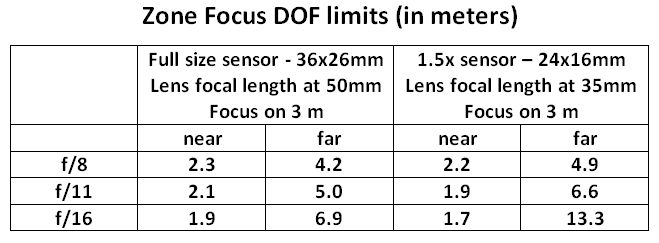
Take another look at the photo of the camera lens scales above. The lens is set to f/16 and the focus distance to about 8 ft (2.4m), pretty close to what the table shows for the hyperfocal distance. But also note the numbers on either side of the ▲ mark. Those correspond to aperture f-stop values and the lines lead to the near (left side) and far (right side) depth of field distance limits.

For the focus setting in the photo the depth of field at f/8 will extend from a bit over 5 ft (1.6m) to about 15 ft (5m). That is a range of almost 10 feet (3 meters) where everything will be acceptably sharp.

For street photography this is the way to go!

Focus on the average distance of subjects you wish to photograph. Switch to manual focus and leave the focus set as is. Get an idea of the DOF range and keep your subjects in that zone and shoot away.

image


Close-up photography

At longer lens focal lengths, wider apertures and closer distances the depth of field is shallower. You can get an idea from the scale on the lens photo here. Indeed at very wide apertures and close focusing distances the depth of field may be down to millimeters!

This leads to another use of DOF: You can concentrate on just a narrow aspect of your subject making everything that is closer or farther blurred, out of focus.

Sometimes you can replace the background with a cloth or placard. But often that is not practical. So controlling the depth of field may be the way to go. You might want to set the depth of field for a specific range. What aperture should you use for a a given DOF? Again the on-line DOF calculator can help. Here is a chart that shows what aperture to use in order to get a DOF of 5 cm (2 inch) and 10 cm (4 inch) at a couple of working distances.

image


DSC_0080-3

Gardenia Blossom


Soon!  Spring is coming!


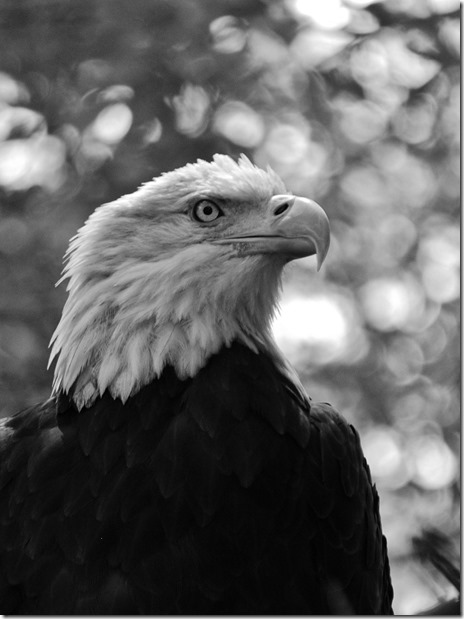
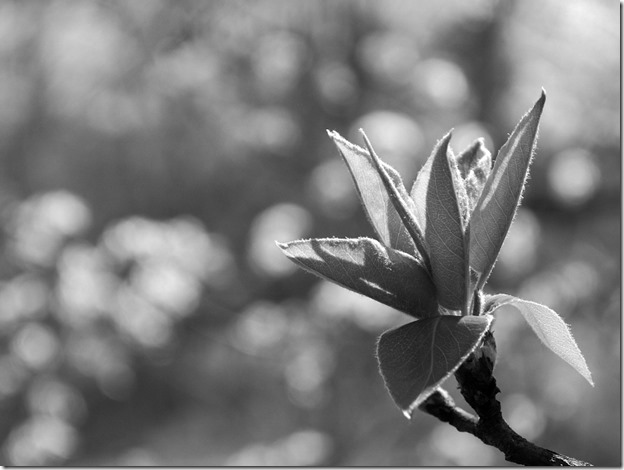
Here are three photos that control the depth of field so only the primary subject is sharp and the background is quite blurred.

Notice that the background consists of circles of light. Photographers call this “bokeh”. Wikipedia has a good article on bokeh. You can look it up. In effect these are images of the aperture in your lens.

The eagle photo was photographed at f/5.6 with a lens focal length of 200 mm. The magnolia blossom at f/16 and 55 mm, and the baby leaves at f/8 and 55 mm focal length.

If you are careful enough and have some control over the distance to the background you can get beautiful bokeh for most of your photos.


“Sweet spot” and diffraction blur

These are two more concepts that go hand in hand with depth of field. Every lens has an aperture setting at which the lens produces the sharpest image. Lens design is an art of compromise. To achieve the magnificent results that we accept as commonplace requires imaginative design, huge numbers of calculations that involve juggling of materials and production capabilities and many trade-offs. At the widest apertures lenses will have some limitations that prevent the image from being perfect. At small apertures the nature of light sets limits, this is diffraction. Diffraction is a blurring of light that prevents forming a perfect point. A point of light will be imaged as a small blurry circle or patch. At smaller apertures this patch gets bigger. So no matter how small the tiny pixel sensors are, the sharpness of the image will be limited. Diffraction blur starts to dominate for full-size sensor cameras at about f/16. For small sensors it will become the primary limitation at much wider apertures. This is why a photo taken at f/22 will not seem to be as sharp as one taken at f/11 or f/8. At wider apertures residual lens aberrations limit the sharpness. So for any lens there is a best aperture, the “sweet spot”. Take a look at the EXIF data for your sharpest photos. Keep the sweet spot in mind when you are taking pictures, try to use that aperture as often as possible.

.:.